1) About Crafty Syntax [back to top]
Crafty Syntax is an open source customer relationship management solution that brings real-time live help to your site. Operators can proactively invite visitors to chat or respond when customers request assistance. The 3.7.x release remains GPL/Apache dual-licensed and is coded in PHP with MySQL for storage.
Highlights include multiple operators, departments, and languages; configurable questions; proactive auto-invite; referer and page tracking; “what the visitor is typing” previews; simultaneous chat sessions; sound or alert notifications; offline message capture; push URLs; quick responses; customizable graphics; and full server-side control.
The project now ships inside the LUPOPEDIA bundle. Focus your future enhancements on the LUPOPEDIA migration tooling and AI agents for CRM workflows.
2) How to INSTALL Crafty Syntax [back to top]
- Download the latest package bundled with LUPOPEDIA: ⬇️ Download Crafty Syntax .
- Upload the archive contents to your web server.
- Open
setup.phpin your browser, e.g.https://yourdomain.com/livehelp/setup.php. - Follow the on-screen wizard to configure database credentials and the first operator.
Need assistance? Reach out through the LUPOPEDIA support channels for guided installs.
3) How to UPGRADE Crafty Syntax [back to top]
- Back up
config.phpplus customized assets inimages/andsounds/. - Upload the new 3.7.x files over the existing install (do not overwrite
config.php). - Open
setup.php; the upgrader auto-detects your version, runs database migrations, and exits without additional prompts.
Always keep a database snapshot (CSV export) before upgrades. PORTUNUS in LUPOPEDIA can automate this as part of the migration path.
4) Registration & Alerts (Deprecated Workflow) [back to top]
The legacy registration flow (emailing a code to unlock updates) has been retired in 3.7.x. Instead, the admin overview page now loads real-time notices from security/remote_scratch.php via iframe whenever an operator logs in. This ensures everyone immediately sees current issues, security advisories, or release notes without submitting a registration form.
Keep your Crafty Syntax install on 3.7.x and review the overview page after login to stay informed. Longer-term, LUPOPEDIA will surface these alerts through its AI agents and CRM dashboards.
5) How to Place HTML code for a Department on Your Webpage [back to top]
- Open the Departments tab.
- Click Generate HTML next to the department you want to embed.
- Choose the appropriate options (department, placement, format, hidden icon, frames, SSL) and click Create.
- Paste the generated code into your website.
Option Reference
- Which Department: Select a specific department or allow visitors to choose when requesting help.
- Where to place the code:
- Relative – Use only if the embed lives under the same domain (e.g.
https://www.yourdomain.com/). - Outside the domain – Generates absolute URLs; recommended for most installs.
- HTML email / eBay – Produces non-JavaScript code for environments that disallow scripts (no tracking or invites).
- Text email – Simple link-only option.
- Relative – Use only if the embed lives under the same domain (e.g.
- Format: JavaScript embeds support the full feature set; use HTML or link formats where scripts aren’t permitted.
- Hidden Icon: Monitor pages without showing the live help button (operators can still invite visitors).
- Frames: If your site uses framesets, enable this so visitor tracking references the parent document.
- Secure SSL: Choose “Yes” when placing the code on HTTPS pages.
6) How to Monitor Live Help traffic and Chat [back to top]
After embedding the HTML, open the admin console and click the Live Help tab to start monitoring traffic.
- You can minimize the operator window; it will auto-focus (and play a sound) when a chat request arrives.
- Click Activate next to a visitor to join the chat. Tabs show each concurrent session with distinct colors.
- Use the Current Visitors list to review page activity, issue invites, or trigger auto-invite rules.
- Chat controls let you clear transcripts, refresh views, or toggle optional operator tools (games, search, etc.).
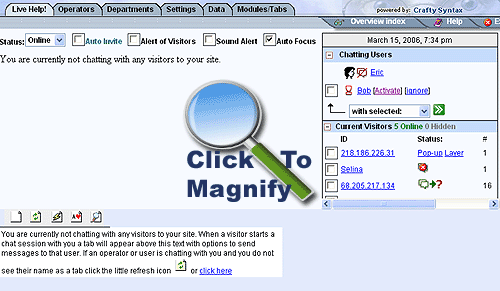
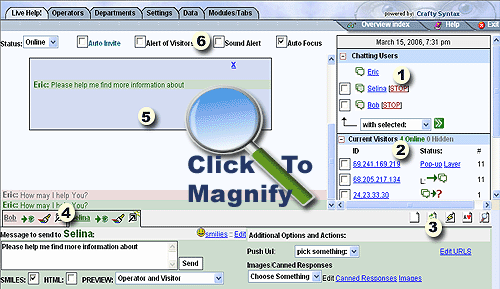
Operator Screen Sections (numbered in the screenshot)
- Chatting Users: Lists every operator and visitor currently in conversation. Activate, stop, or join active chats from here.
- Current Visitors: Shows everyone browsing pages with the embed. Launch invites, view page trails, and monitor live activity. Icon states correspond to the legend above.
- Chat Controls: Quick actions to clear the transcript, refresh tabs, reset stale sessions, or toggle optional waiting-room tools (games, search, etc.).
- Chat Tabs/Sessions: Each tab represents an open channel. Open a session in a new window, recolor the tab, or focus on a single chat.
- Chat Transcript Area: The live conversation view. Channels are color-coded so multiple chats can be followed at once.
- Chat Options: Toggle auto-invite thresholds, new-visitor alerts, sound cues, or auto-focus behavior for the operator console.
Current Visitor Status Icons

Visitor has been invited (auto or manual) but has not seen the request yet.

Visitor is viewing the invite/questions page or has just requested a chat.

Visitor closed the invite or ended the chat session.
Legacy screenshots remain in /manualimg/ if you need visual references for the classic UI.
7) Understanding Page Visits & View Paths [back to top]
Page Visits
Page Visits shows how many times a specific page was clicked or loaded, regardless of whether the same visitor triggered it multiple times. Treat it as the total engagement indicator for that page rather than a unique visitor count.
View Path
The View Path column traces where a visitor went immediately after leaving the current page. Reviewing these paths helps operators understand the journey from one screen to the next, spot drop-off points, and decide where to engage.
Example Metrics Snapshot (legacy console)
FROM: https://lupopedia.com/
| Clicks to | % | # Clicks | View Path |
|---|---|---|---|
| /what_was_crafty_syntax.php | 54.55% | 30 | View Path |
| / | 27.27% | 15 | View Path |
| /index.php | 3.64% | 2 | View Path |
| /salessyntax_changelog.php | 3.64% | 2 | View Path |
| /support.php | 1.82% | 1 | View Path |
Legacy tabs let operators pivot between Page Visits, Paths, Referers, and more. Reproducing the layout in LUPOPEDIA keeps onboarding familiar while adding richer analytics.
You can surface the same metrics inside onboarding dashboards or archival reports. Simply embed this section as a module wherever operators review visitor analytics.
Video Tutorials
Legacy tutorials remain available for quick refreshers:
- How To Create a "Live Help" Site
- Demo Overview of Crafty Syntax
- Basic Customization Options (operator image, theme)
- How to Talk to MULTIPLE Visitors at the Same Time
- Tutorial for Operators of Crafty Syntax
- How to Upgrade Crafty Syntax to the Latest Version
- Crafty Syntax Live Help 01
- Crafty Syntax Live Help 02
- Crafty Syntax Live Help 03
- Crafty Syntax Live Help 04
- Como vender por Internet, crear operadores y departamentos
- Como vender por Internet, administrar una sesión de chat
New LUPOPEDIA tutorials cover the AI-enhanced workflow; watch for additions in updates.php.